Headlamp, a friendly Kubernetes dashboard for newcomers and admins
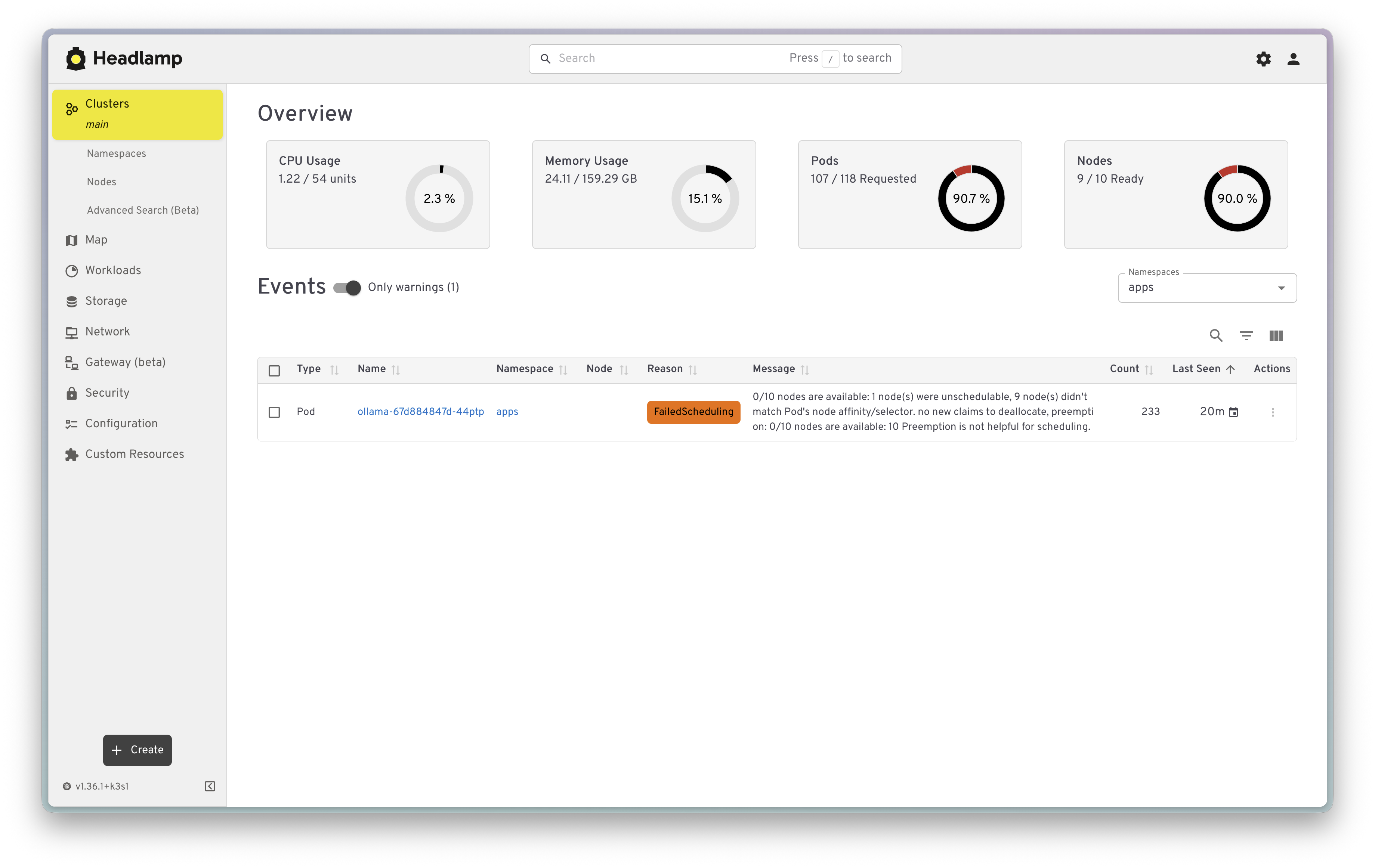
When you are new to Kubernetes, the hardest part is often that you cannot see anything. You run kubectl get pods, then kubectl describe, then kubectl logs, and you slowly build a picture of the cluster in your head one command at a time. A good dashboard collapses all of that into a single screen you can click around in, and that turns out to be useful whether you are on day one or year five.
Headlamp is that dashboard. It is an open-source web UI for Kubernetes maintained under the official Kubernetes SIG UI umbrella, so it is not a side project that will disappear next year. It runs as a normal pod inside your cluster, it respects Kubernetes RBAC instead of inventing its own permission model, and it is extensible through plugins.
I run it in my homelab through my Argo CD app-of-apps repo, but that is not the right starting point if you are new to all of this. So this post does it the simple way first: install it with Helm, reach it safely, and log in. Then I will show two ways to run it that I think matter more than the install itself: a read-only setup so the dashboard can never change anything, and a secure admin setup for when you do want to drive the cluster from a browser.
Why a dashboard at all
kubectl is not going anywhere, and you should still learn it. But a dashboard earns its place for a few different audiences:
- If you are new to Kubernetes, Headlamp is a map. You can browse namespaces, see which pods are running or crash-looping, read logs and events without remembering flags, and click from a Deployment to its ReplicaSet to its Pods to learn how the objects actually relate. It is a much gentler way to build a mental model than memorizing commands.
- If you are experienced, it is a fast triage tool. When something is broken, scanning a namespace visually and jumping straight to events and logs is often quicker than typing. Headlamp also does multi-cluster, so you can keep several clusters behind one UI.
For my homelab, it is a read-only status page. You can configure it to allow modifying the cluster but I prefer to do that through my deployment workflow.
Prerequisites
You only need one thing for this walkthrough:
- A functional Kubernetes cluster you can reach with
kubectl. Any conformant cluster works: k3s, kind, minikube, a managed cluster, whatever you already have running. Ifkubectl get nodesreturns a node, you are ready.
You will also want Helm installed locally for the install step. Everything else, Headlamp creates for you.
Install Headlamp with Helm
Headlamp publishes an official Helm chart. Add the repo and install it into its own namespace:
helm repo add headlamp https://kubernetes-sigs.github.io/headlamp/
helm repo update

helm install headlamp headlamp/headlamp \
  --namespace headlamp \
  --create-namespace
That is the whole install. The chart creates a Deployment, a ClusterIP Service on port 80, a ServiceAccount named headlamp, and a ClusterRoleBinding for it.
It is worth knowing exactly what that binding does, because it is the most important security detail in the default install: the chart binds the headlamp ServiceAccount to cluster-admin. That is convenient for getting started, but it means a token from that account can do anything in the cluster. We will tighten that up in a moment.
Check that the pod is running:
kubectl get pods -n headlampReach it safely with port-forward
The Service is ClusterIP, so it is not exposed outside the cluster by default. That is the correct starting point. The safest way to open the UI is a port-forward, which tunnels it over your already-authenticated kubectl connection and exposes it to nobody but you:
kubectl port-forward -n headlamp service/headlamp 8080:80Now open http://localhost:8080. Headlamp will greet you with a login screen asking for a token. This is the key idea: Headlamp does not have its own accounts. It asks for a Kubernetes ServiceAccount token, and whatever that token is allowed to do is exactly what you can do in the UI. RBAC is the auth layer.
Logging in with a token
Mint a short-lived token for the headlamp ServiceAccount and paste it into the login box:
kubectl create token headlamp -n headlamp --duration=1hThe --duration=1h matters. This uses the Kubernetes TokenRequest API to create a token that expires on its own, so there is no long-lived credential sitting in a Secret waiting to leak. When it expires, you mint another one. Get into that habit early.
Because the default headlamp account is bound to cluster-admin, that token gives you a full admin session. For a single-person homelab behind a port-forward, that is fine. But most of the time you do not need it, so let us make read-only the normal way in.
Read-only access (the safer default)
The login-with-a-token model has a lovely consequence: you can create different accounts with different permissions and simply log in with whichever token fits the task. So we will create a dedicated read-only account.
Save this as headlamp-readonly.yaml. It creates a ServiceAccount, a ClusterRole that allows only the non-mutating verbs (get, list, watch) on every resource, and a binding between them:
apiVersion: v1
kind: ServiceAccount
metadata:
  name: headlamp-viewer
  namespace: headlamp
---
apiVersion: rbac.authorization.k8s.io/v1
kind: ClusterRole
metadata:
  name: headlamp-readonly
rules:
  # Read everything, including cluster-scoped objects like nodes, CRDs,
  # and PersistentVolumes, so the dashboard is complete.
  - apiGroups: ['*']
    resources: ['*']
    verbs: ['get', 'list', 'watch']
  - nonResourceURLs: ['*']
    verbs: ['get']
---
apiVersion: rbac.authorization.k8s.io/v1
kind: ClusterRoleBinding
metadata:
  name: headlamp-viewer
roleRef:
  apiGroup: rbac.authorization.k8s.io
  kind: ClusterRole
  name: headlamp-readonly
subjects:
  - kind: ServiceAccount
    name: headlamp-viewer
    namespace: headlamp
Apply it and mint a token for the new account:
kubectl apply -f headlamp-readonly.yaml
kubectl create token headlamp-viewer -n headlamp --duration=1h
Log in with that token and the dashboard becomes observation-only. You can browse everything, read logs, and inspect events, but the API will reject any change. Create, edit, delete, scale, exec, and port-forward are all off, because none of those verbs are in the role. This is the version I would hand to anyone who just wants to look, and it is the version I run myself, because my cluster is managed declaratively and the UI has no business writing to it.
One caveat to know: a wildcard read role can also read Secret values. If you would rather hide them, you can grant read on everything except secrets, but that is a refinement, not a requirement, for a personal homelab.
A secure admin interface
A port-forward is great for yourself, but typing a kubectl port-forward command every time gets old, and it does not help if you want the dashboard reachable from your phone or a tablet on the couch. To use Headlamp as a real admin interface on your network, you want a stable URL and TLS. Here is how to do that without making it dangerous.
Put it behind an Ingress with TLS. Most clusters already have an ingress controller. Here is a generic Ingress; change ingressClassName to match your controller (nginx, traefik, cilium, and so on) and use your own hostname:
apiVersion: networking.k8s.io/v1
kind: Ingress
metadata:
  name: headlamp
  namespace: headlamp
spec:
  ingressClassName: nginx
  tls:
    - hosts:
        - headlamp.home.arpa
      secretName: headlamp-tls
  rules:
    - host: headlamp.home.arpa
      http:
        paths:
          - path: /
            pathType: Prefix
            backend:
              service:
                name: headlamp
                port:
                  number: 80
The headlamp-tls secret is the certificate for that hostname. The easiest way to get a real, auto-renewing certificate is cert-manager; I wrote up automating wildcard TLS certificates in Kubernetes if you want a repeatable setup that covers every service in the cluster instead of one cert per app.
With that in place, a few rules keep it safe:
- Keep it on your LAN. Do not expose Headlamp to the public internet. A dashboard that can drive your cluster is exactly the kind of thing you do not want sitting on a public address. Point your internal DNS at the ingress and leave it there.
- Always use TLS. The login token travels to the browser; serve it over HTTPS so it is encrypted in transit, and so you are not training yourself to click through certificate warnings.
- Keep tokens short-lived. Use
kubectl create token ... --duration=1hand re-login. Avoid creating a long-lived token Secret unless you have a specific reason. - Use the right account for the job. Log in with the read-only
headlamp-viewertoken for everyday looking, and only mint the adminheadlamptoken when you actually intend to change something. This is the difference between a leaked token being an inconvenience and being a full cluster compromise. - Want true multi-user logins? Headlamp supports OIDC, so you can put it behind an identity provider and have people sign in with their own accounts instead of pasting tokens. That is more setup than a homelab usually needs, but it is there when you outgrow tokens.
Verify it works
A quick checklist to confirm everything is healthy.
The pod is running and the Service exists:
kubectl get pods,svc -n headlampYour read-only account really is read-only. kubectl auth can-i lets you test permissions as a ServiceAccount without logging in:
# Should print "yes"
kubectl auth can-i list pods \
  --as=system:serviceaccount:headlamp:headlamp-viewer -A

# Should print "no"
kubectl auth can-i delete pods \
  --as=system:serviceaccount:headlamp:headlamp-viewer -A
If the first returns yes and the second returns no, the dashboard logged in with that token can look but not touch.
Then open the UI, log in with a token, and confirm you can see your namespaces and read a pod’s logs. If you set up the Ingress, browse to https://headlamp.home.arpa instead of the port-forward and check that the certificate is valid.
How I run it
In my own cluster I do not install Headlamp by hand. It lives in my Argo CD app-of-apps repo as a normal application: the upstream Helm chart, a values file, an Ingress that terminates TLS with my wildcard certificate, and a read-only ClusterRole that the ServiceAccount is bound to instead of cluster-admin. Argo CD keeps it in sync with git, and because the dashboard is read-only, every actual change to the cluster still flows through git and reconciliation rather than the UI.
That is the right shape once you are comfortable, but it is not the right first step. If you are new to Kubernetes, install it with Helm as shown above, drive it read-only, and let the dashboard teach you how the cluster fits together. The GitOps version will make a lot more sense after you have spent some time clicking around and seeing what all these objects actually are.