Orbstack
This is a quick weekend post looking at a tool (just for macOS unfortunately).
When it comes to running containers, docker is the most widely used tool with millions of container images available on the public Docker hub. If you are not familiar with containers, check out a previous post to get an introduction. Running containers on macOS is not the best experience compared to even a simple Linux server like a Raspberry Pi. In the past, I have explored other options such as Colima.
I found an app for macOS that makes running containers easy and provides a nice interface to do it all while letting you keep using the same docker and docker compose commands. I heard about Orbstack on Reddit and it is easy to get started and run a container in under 5 minutes.
Installing on macOS
This app is only available on macOS at the time of this post. If you are just running a mac at home, at this time it is free for personal use.
You can download the app from the official site: https://orbstack.dev/download
Installing with homebrew
On macOS I recommend installing homebrew which is a package manager for macOS.
Once you have homebrew available, install with one command:
brew install orbstackStarting a container
Running a container
This will pull the image docker.io/nginx:alpine from the public Docker Hub.
docker run -dt -p 8000:80/tcp nginx:alpineList running containers
Enter this to see what containers you have running on your system:
docker psYou should see something like this:
CONTAINER ID   IMAGE          COMMAND                  CREATED          STATUS          PORTS                                     NAMES
6f00088f2b14   nginx:alpine   "/docker-entrypoint.…"   32 seconds ago   Up 32 seconds   0.0.0.0:8000->80/tcp, [::]:8000->80/tcp   cranky_banzai
Delete a container
If you want to remove a container, enter this:
docker rm 6f00088f2b14You can also reference containers by their NAME attribute:
docker rm cranky_banzaiBuilding a container
Once Orbstack is working, you can also use it to build OCI compatible container images. Here is an example JavaScript server that we can build into a container image and run with Orbstack.
Create the Following files
First make a package.json file to include the library dependencies.
{
  "dependencies": {
    "express": "*"
  },
  "scripts": {
    "start": "node index.js"
  }
}
Create a javascript file index.js
const express = require('express');

const app = express();

app.get('/', (req, res) => {
  res.send('Hello from a container built with orbstack');
});
app.listen(8080, () => {
  console.log('Listening on port 8080');
});
Create a Dockerfile in the same directory as these other files.
FROM node:alpine
WORKDIR usr/app
COPY ./ ./
RUN npm install
CMD ["npm", "start"]
Build the Dockerfile
Run this in the same directory as the code:
docker build --tag hello .Run built image
Now run the image that you built:
docker run -d -p 8080:8080 helloNow connect to the web server in a browser or terminal and you should see the message configured in index.js
$ curl localhost:8080
Hello from a container built with orbstack
or visit http://localhost:8080 in a browser
Orbstack UI
Once you have a container running you can view it in the UI:
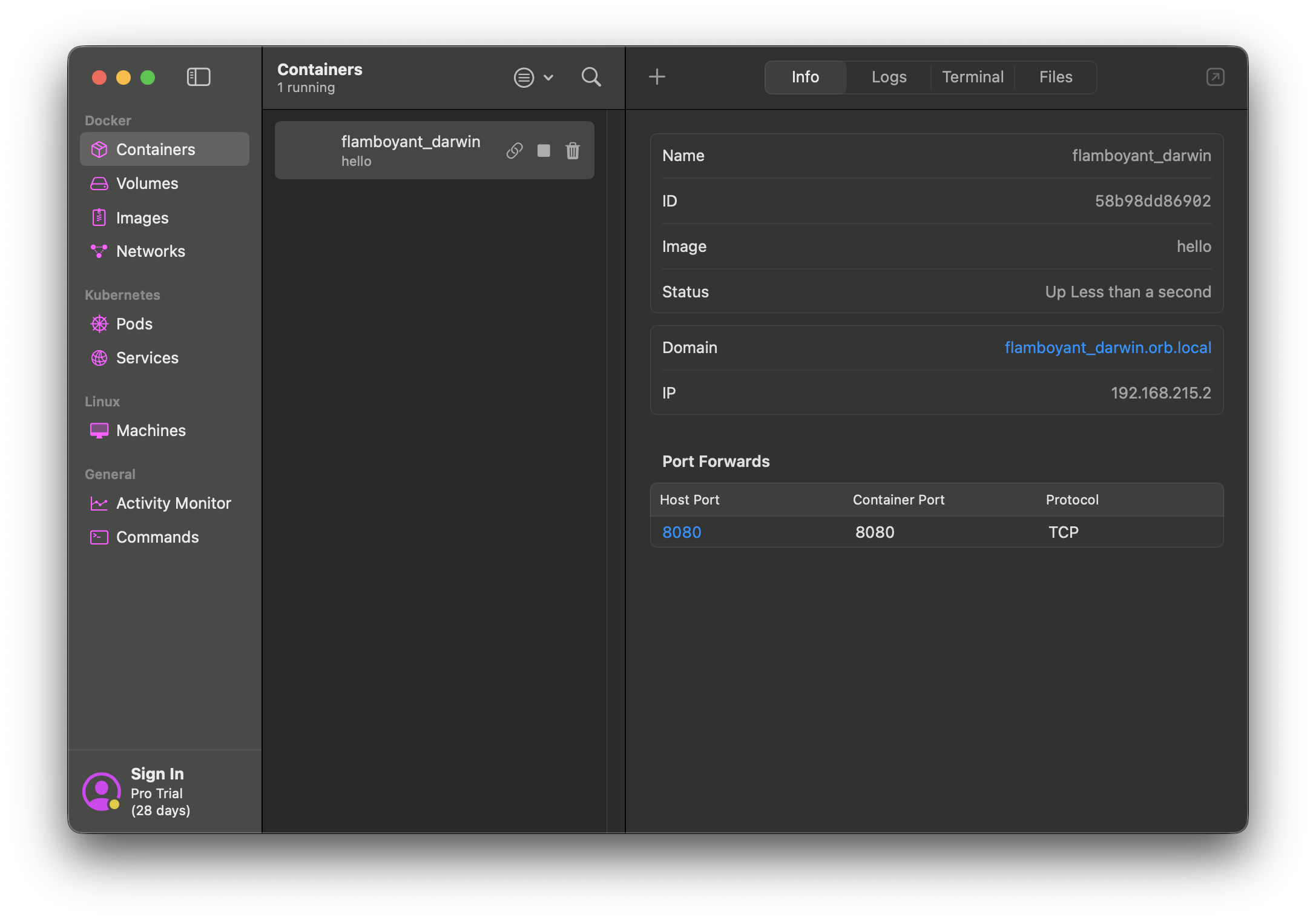
Create a new container in the UI
When you have Orbstack app open in the Containers view, you can select the + icon or
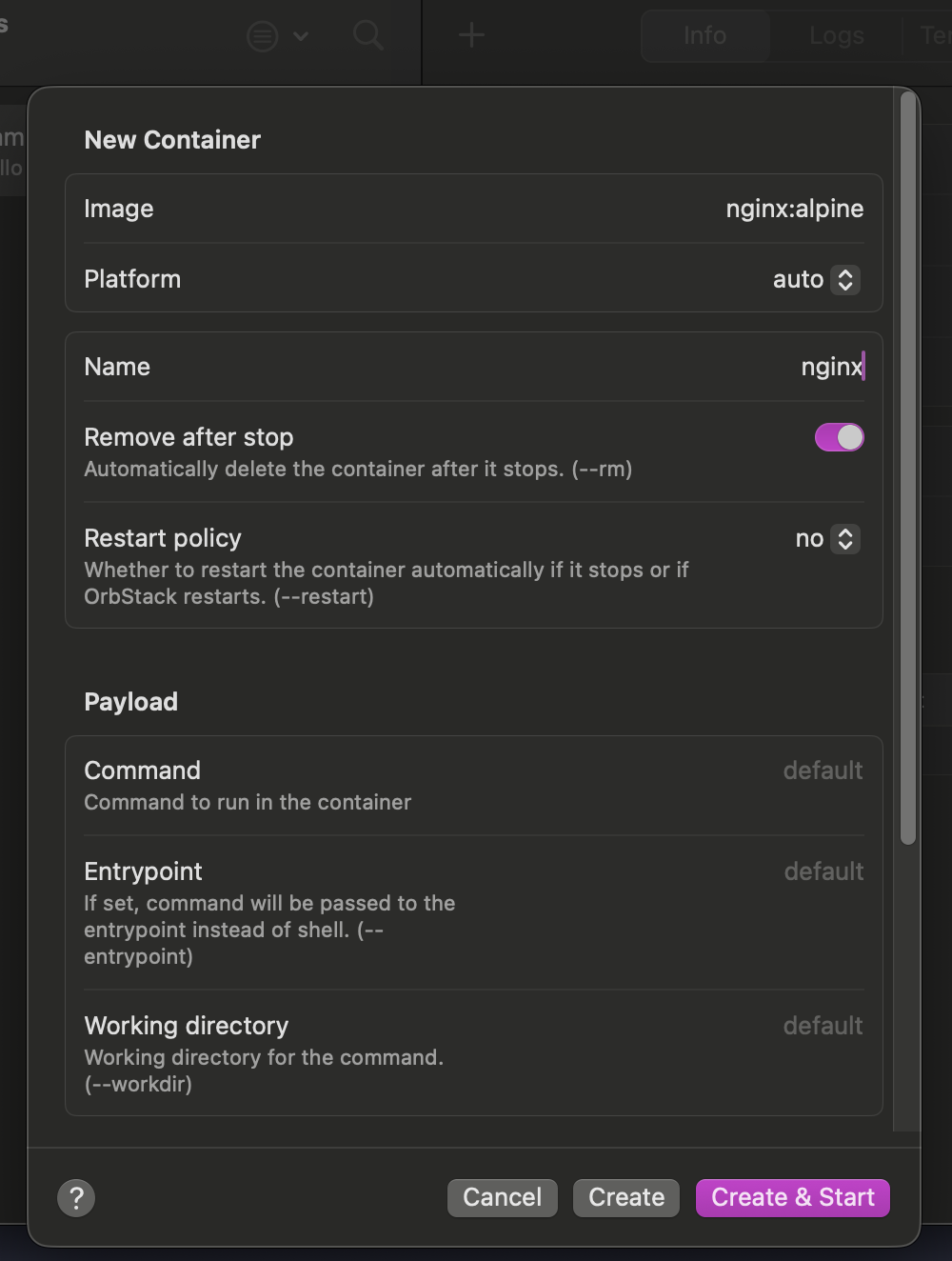
Select Create and Start to create a new container.
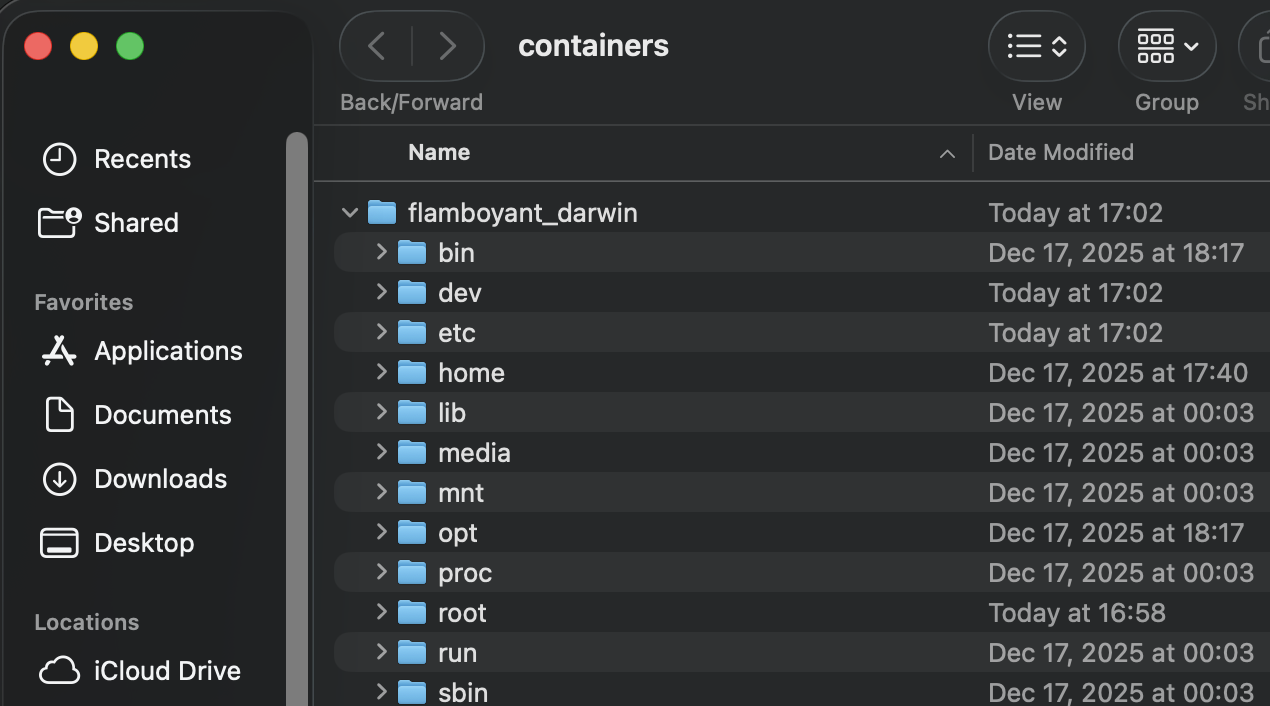
Open the container in Finder
When Orbstack is running, there is a network mounted directory on your mac that has containers, images, volumes and Linux machines if you create those. You can press
These files are only available when Orbstack is running as it is presented to your mac as a NFS mount.
Clean up
To remove everything that you started following this article:
Stop all containers:
docker stop $(docker ps -a -q)Remove all containers:
docker rm $(docker ps -a -q)In the Orbstack UI, a container can be deleted with the icon that looks like a trash bin.