ZShell in 2026
To close out my weekend, here is a post about setting up ZShell in 2026. In case you are not familiar with a shell:
What is a shell?
The shell is a program that translates human readable words (commands) and converts them into binary data that the Operating System kernel can interpret. The shell can interpret commands entered from the keyboard or a file commonly referred to as a script. Shells mostly follow standards set by the Unix operating system of the past. On modern Operating Systems like macOS and GNU + Linux, the shell allows you to control your computer and control other computers remotely.
You can access the shell through a terminal program on the local computer or remotely using SSH.
The most popular shells that I am aware of are:
ZSH
Zsh is a shell that builds on other shells such as bash, ksh, and tcsh. Bash is the most widely used and has been stable for decades. Zsh offers some useful features such as better tab completion. ZSH is not always compliant with POSIX standards so if you have shell scripts, check they will work on zsh before migrating.
What brought me to ZSH was starting to use a Macbook as my primary workstation for my jobs over the years.
Installing Zsh
Windows
On Windows, you would need Cygwin or the newer Windows Subsystem for Linux. If you set up WSL, you can have a Linux shell running alongside your Windows Operating system.
macOS
On macOS, the zsh shell should be the default in 2026.
Linux
If you are running Linux, the package manager for each distribution of Linux should have a package for zsh.
On Red Hat distros:
sudo dnf install zshOn Debian distros:
sudo apt-get install zshOn SUSE distros:
sudo zypper install zshChange default shell
Once you have installed zsh, you need to configure it as your default shell.
If you are on macOS, skip this step as zsh should already be the default.
chsh -s /bin/zshExamples
CD shorthand
% repos
% pwd
/home/user/repos
In the example above, simply typing the name of a directory into the prompt will take you to that directory in the shell. On other shells such as bash, this would return an error.
Tab completion
ls
dir1 dir2 foo bar
Zsh improves tab completion. Try typing ls and tab twice. Zsh will display the files and directories that you can interact with and navigate through with arrow keys. It also works with cd and mv.
Directory shorthand
ls /f/b/arTry entering only a few characters to the paths to a directory you wish to navigate to. Zsh will expand these fuzzy directories and let you navigate with less typing.
Recommended addons
Out of the box, Zsh has a lot to offer and there are a few additions that make it even better.
If you want to add plugins to zsh, I recommend a tool like Antidote that creates a static bundle of your plugins and supports deferred loading of certain plugins to reduce startup time.
On macOS, you can install with: brew install antidote
On Linux (or macOS), you can install the latest version directly from the git repo:
# first, clone this from an interactive zsh terminal session:
git clone --depth=1 https://github.com/mattmc3/antidote.git ${ZDOTDIR:-~}/.antidote
Create a plugin list in your home directory: touch ~/.zsh_plugins.txt (Antidote builds a static bundle from it).
These are the plugins I use for a prompt theme, syntax highlighting, auto completions, and suggestions from your history:
# Prompt
romkatv/powerlevel10k

# Completions (must be available before compinit)
zsh-users/zsh-completions

# UX
zsh-users/zsh-autosuggestions kind:defer
zdharma-continuum/fast-syntax-highlighting kind:defer
Create or update the file .zshrc in your home directory:
# ---- p10k instant prompt (keep at top) ----
if [[ -r "${XDG_CACHE_HOME:-$HOME/.cache}/p10k-instant-prompt-${(%):-%n}.zsh" ]]; then
  source "${XDG_CACHE_HOME:-$HOME/.cache}/p10k-instant-prompt-${(%):-%n}.zsh"
fi

# ---- Antidote (fast plugin loading) ----
source $HOMEBREW_PREFIX/opt/antidote/share/antidote/antidote.zsh  # brew caveat
# Generate/refresh static bundle (fast path on subsequent shells)
antidote load ${ZDOTDIR:-~}/.zsh_plugins.txt

# ---- Completion system (do this early) ----
autoload -Uz compinit
# If you care about absolute fastest startup, you can add -C to use a cached compdump.
compinit -u

# p10k config
[[ ! -f ~/.p10k.zsh ]] || source ~/.p10k.zsh
Now when you open a new shell, antidote will clone the plugins you specify in ~/.zsh_plugins.txt. If you have not previously configured powerlevel10k it will prompt you to set it up now.
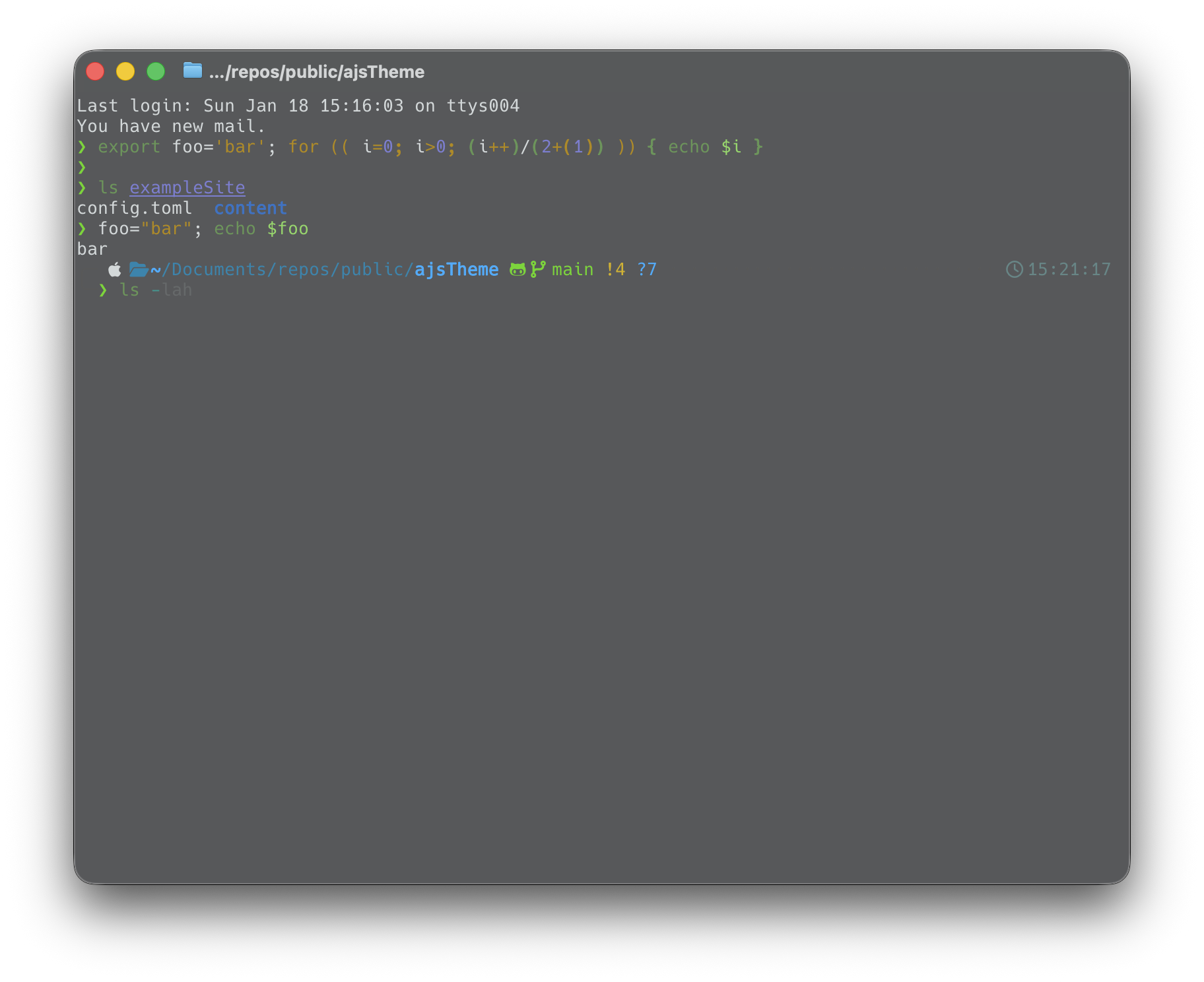
After setup, your shell should open fast and come with syntax highlighting and suggestions from your history.
Powerlevel10k theme
Powerlevel10k is a theme for zsh that can be easily installed with antidote.
After setting up antidote and starting a new shell, you should see the powerlevel10k config wizard:
This is Powerlevel10k configuration wizard. You are seeing it because you
haven't defined any Powerlevel10k configuration options. It will ask you a few
questions and configure your prompt.
Does this look like a diamond (rotated square)?
reference: https://graphemica.com/%E2%97%86
---> <---
(y) Yes.
(n) No.
(q) Quit and do nothing.
Choice [ynq]:Plugins
The other plugins provide some more features to the shell:
Completions
ZSH completions gathers developing/new completion scripts that are not available in Zsh yet. The scripts may be contributed to the Zsh project when stable enough. These run when you press TAB to complete a command in the shell.
Auto-suggestions
This plugin suggests commands as you type based on history and completions. They appear in dim text and you can press the right arrow key or End key it will accept the suggestion, replacing the contents of the command line buffer with the suggestion.
Syntax highlighting
This plugin provides syntax highlighting in the shell as you type commands. It can help construct loops inline and one other example is if you are writing a git commit message, it will turn red after you hit the character limit.
Here is a screenshot of a zsh prompt with all of these plugins enabled: